

Technical data

Browse all materials catalogs, CAD files, drawings, technical videos and
review the information.
Self 2D/3D Drawing Service Guide

- It allows you to create the drawings yourself according to your specifications with just a few simple clicks saving you the trouble of having to contact us.
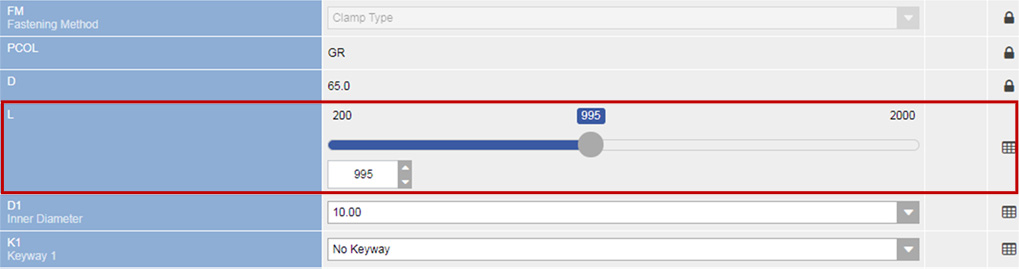
- You can also create the drawings with non-standard requirements e.g. keyway, side-clamp split for couplings, specific length(L) for Connecting shafts.
- All types of CAD drawings (2D/3D) can be downloaded as well as PDF file format.
- This service is available for products that display the left-hand symbol on their specification pages.
The first thing to do Please create your account on CADENAS website. Go to Sign-up page >

- Click “Register” and you’ll be linked to a sign-up page in the right-side.
- Fill your email address.(It’s recommended that a business email is registered.)
- Length of password must be between 6 and 60 characters, containing min. 1 uppercase letter, 1 lowercase letter, 1 digit(number).
- Fill all the required fields(*).
- Lastly, please read the license agreement and tick its checkboxes before clicking “register”
STEP 1 Select products (Coupling/Connecting Shaft ONLY)
CASE1 : Product Selection for Coupling
- STEP 1 Select a coupling type
- STEP 2 Select a coupling’s outer diameter (OD) size
- STEP 3 Check the max.
inner diameter
(ID) - STEP 4 Check
slip torque - STEP 5 Check
other points
CASE2 : Product Selection for Connecting Shaft
- It is basically the same with Case 1 (Product Selection for Coupling), only adding the very last option of determining Length.
- The only coupling types which can be made as Connecting shaft are SJC(Jaw) and SHD(High torque Disk)
- STEP 1 Select a coupling type
- STEP 2 Select a coupling’s outer diameter (OD) size
- STEP 3 Check the max.
inner diameter
(ID) - STEP 4 Check
slip torque - STEP 5 Check
other points - STEP 6 Determine the total length(L)
STEP 2 Create drawings
CASE1 : Product Selection for Connecting Shaft
Example model : SHR-33CW 10K3T3 X 14W
- Model
- SHR-33C
- Specific requirements
- [D1: Ø10 + Keyway 3mm + additional Tapped-hole on the keyway] + [D2: Ø14 + Side-clamp Split process]
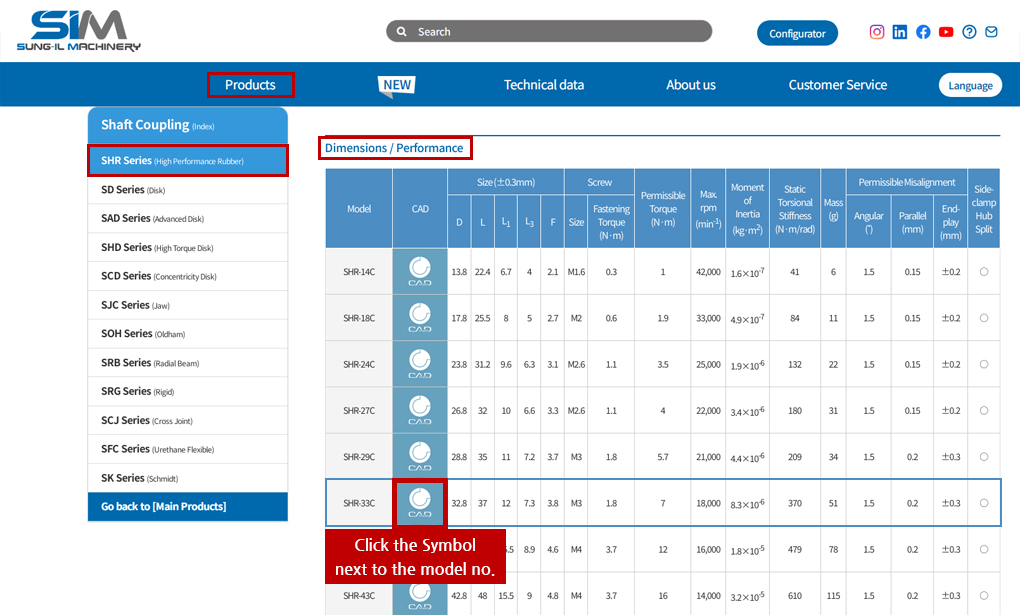
1Access to the below path and click “CADENAS” symbol next to “SHR-33C” as shown in the below screenshot.
Path: [Products] >> [Coupling] >> [SHR Series] >> [Dimensions/ Performance/ CAD]
2Then, you’ll be linked to the page which you can create drawings. Fill the specific requirements according to the below table.
| Mark | Description | Remark | Clamping Methods | ||
|---|---|---|---|---|---|
| SET-SCREW | SIDE-CLAMP | TAPER-RING | |||
| D1(mm) | Inner diameter 1 | ||||
| K1 | Keyway requested for D1 | ||||
| KB1(mm) | Keyway size(width) for D1 | It complies to standard keyway width sizes unless there’s special requirement in advance. | |||
| KT1(mm) | Keyway size(height) for D1 | It complies to standard keyway height sizes unless there’s special requirement in advance. | |||
| SP1 | Side-clamp Split processed for D1 | ||||
| TAP1 | Additional Tapped-hole processed for D1 | It complies to standard tapped-hole sizes (Please contact our customer service team if there’s special requirement on tapped-holes.) | |||
| D2(mm) | Inner diameter 2 | ||||
| K2 | Keywa requested for D2 | ||||
| KB2(mm) | Keyway size(width) for D2 | It complies to standard keyway width sizes unless there’s special requirement in advance. | |||
| KT2(mm) | Keyway size(height) for D2 | It complies to standard keyway height sizes unless there’s special requirement in advance. | |||
| SP2 | Side-clamp Split processed for D2 | ||||
| TAP2 | Additional Tapped-hole processed for D2 | It complies to standard tapped-hole sizes (Please contact our customer service team if there’s special requirement on tapped-holes.) | |||
Please refer to the below example screenshot.
- Specific Requirements for D1
- Bore size: 10mm
- Keyway (width:3mm)
- Additional tapped-hole processed
- Specific Requirements for D2
- Bore size: 14mm
- Side-clamp Split processed
3Generate the preview image.
Click the “Update preview” button and you’ll be able to see the initial look of drawings (2D/3D/Dimension) on the same page even before downloading them.

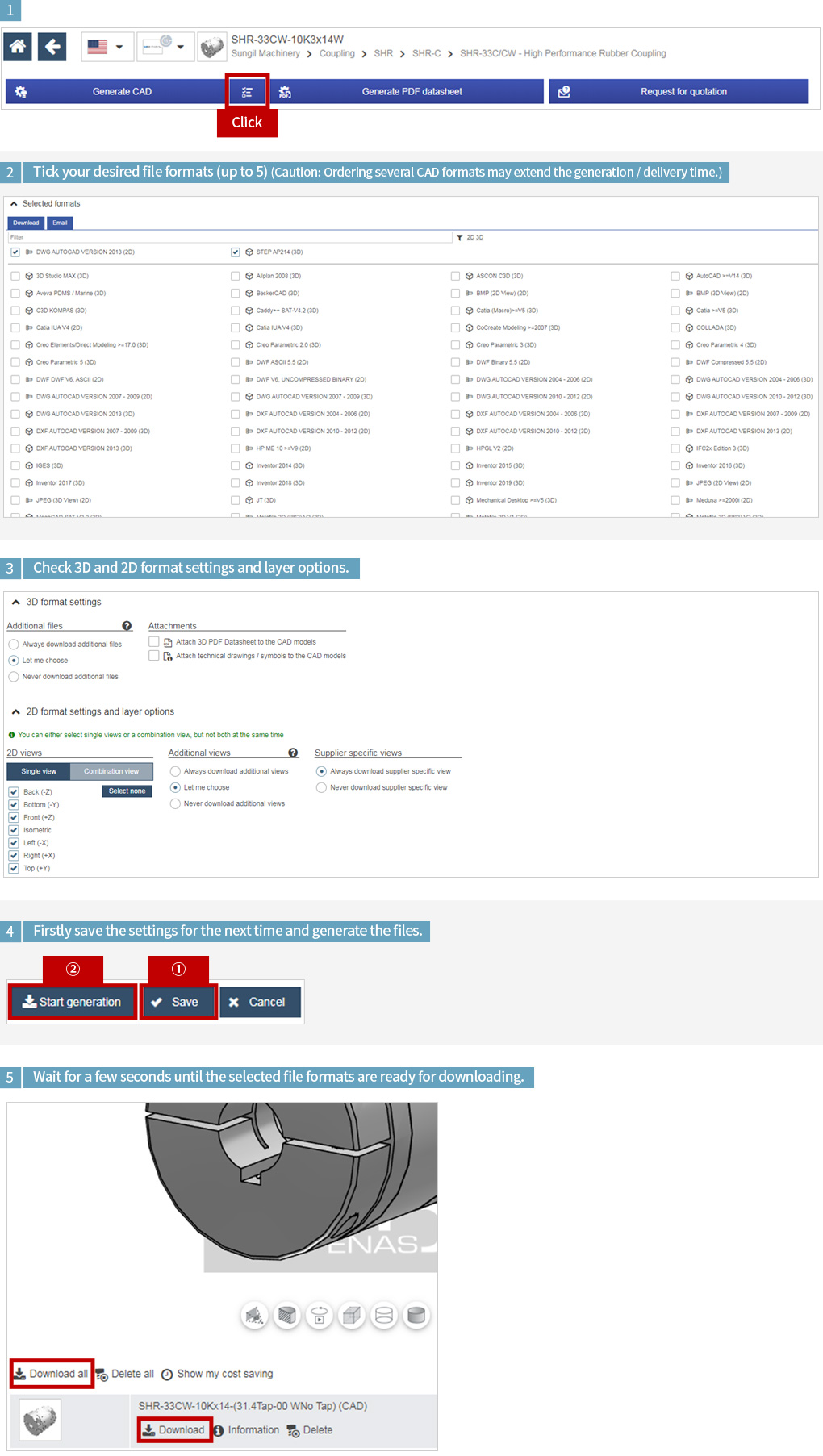
4Select your desired file formats and other conditions and then proceed to download.
CASE2 : Create drawings for Connecting Shaft
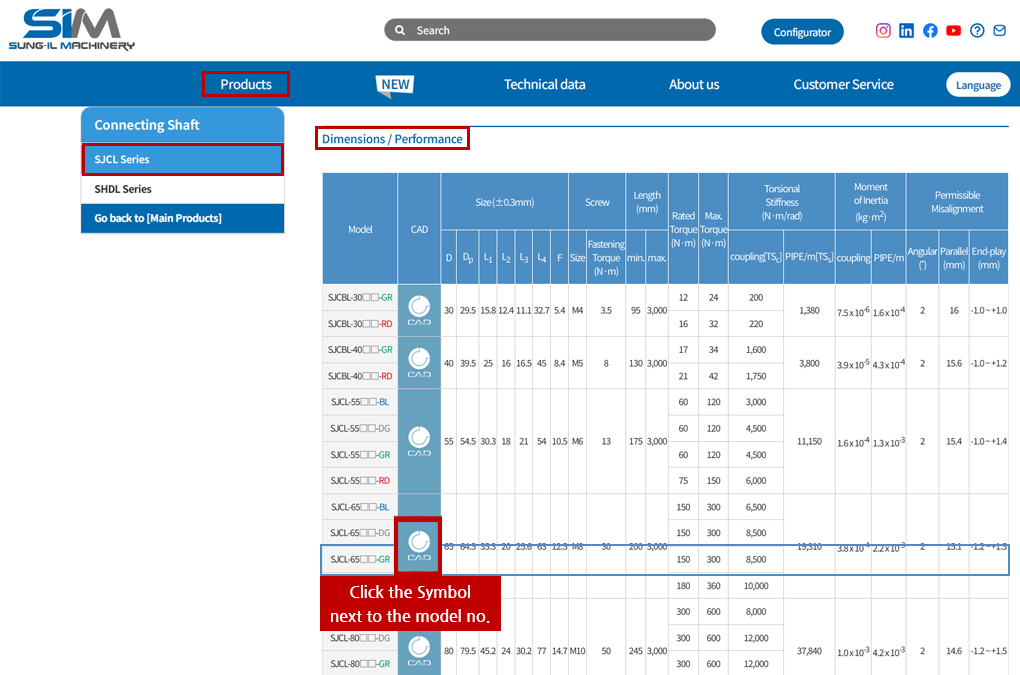
1Access to the below path and click “CADENAS” symbol next to “SJCL-65□□-GR” as shown in the below screenshot.
Path: [Product] >> [Connecting Shaft] >> [SJCL Series or SHDL Series] >> [Dimensions/ Performance/ CAD]
2Other steps are quite similar to Coupling’s (Case 1), however the remarkable point on this Case 2 is the fact you can determine the specific length for your own drawings.